 dan
danThe design guide · 20 parts Updated October 2026 · about 55 min read
How to Choose Your Website Design
A designer's honest guide.
How to pick a website design that sells: styles, colors, fonts, photos, layout, templates vs custom, and how to brief a designer. Plain English, with live demos side by side.

- 01What website design means
- 02Why design choice matters
- 03Start with your goal
- 04Know your visitor
- 05Research competitors
- 06Website design styles
- 07Match style to industry
- 08Choosing colors
- 09Choosing fonts
- 10Photos, illustration, video
- 11Layout & page structure
- 12Navigation & menus
- 13Template vs custom
- 14Builders & platforms
- 15Interactive elements
- 16Mobile, speed, accessibility
- 17Designing to convert
- 18Design and SEO
- 19Brief & judge mockups
- 20Mistakes & choosing a designer
On this page
- 01What website design means
- 02Why design choice matters
- 03Start with your goal
- 04Know your visitor
- 05Research competitors
- 06Website design styles
- 07Match style to industry
- 08Choosing colors
- 09Choosing fonts
- 10Photos, illustration, video
- 11Layout & page structure
- 12Navigation & menus
- 13Template vs custom
- 14Builders & platforms
- 15Interactive elements
- 16Mobile, speed, accessibility
- 17Designing to convert
- 18Design and SEO
- 19Brief & judge mockups
- 20Mistakes & choosing a designer
- +Glossary
- +FAQ
What does "website design" really mean?
When clients say "I want a nice design", they usually mean colors and fonts. That's maybe a third of the job. Before you choose anything, it helps to know what you're actually choosing.
Website design is how a site looks, how its pages are laid out, and how it feels to use. Choosing a design means picking a visual style, a page structure and an experience that fit your business goal and your visitor, not just your personal taste.
I split website design into three layers. Every decision in this guide sits in one of them, and most bad websites I'm asked to fix got one layer right and ignored the other two.
Layer 1: the look (visual design)
This is what people notice first: colors, fonts, photos, icons, spacing, buttons, the overall mood. It's what makes a site feel premium, friendly, technical, playful or serious. It's also the layer people argue about most, because everyone has an opinion on color.
Layer 2: the layout (structure)
This is the order of things. What sits at the top of the homepage, how many pages you have, where the menu goes, how a service page flows from problem to proof to button. Two sites can share the same colors and fonts and perform completely differently because of layout alone.
Layer 3: the experience (UX)
This is how it feels to actually use the site. Does it load fast on a phone? Can you find the price? Does the form break? Is the button where your thumb is? Visitors rarely praise good UX. They just leave when it's bad.
| Layer | What you choose | What goes wrong when it's ignored |
|---|---|---|
| Look | Style, colors, fonts, images | Site feels cheap, generic or off-brand |
| Layout | Pages, sections, order, menus | Visitors can't find what they came for |
| Experience | Speed, forms, mobile, clarity | People leave before they ever contact you |
Design systems: why consistency matters
Behind every polished site is a small set of rules: these are our two fonts, these are our five text sizes, this is our button, this is our spacing. Designers call it a design system or style guide. You don't need a thick document. You need consistency, so the about page feels like it belongs to the same business as the homepage. When I hand a site over, I include a one-page style sheet so anyone adding a page later doesn't slowly drift into a different look.
Website design is also different from branding. Your brand is your name, logo, voice and promise. Your website design expresses that brand on screen. If you don't have a brand yet, the website often becomes the place where it gets decided, which is fine, as long as you know that's what's happening.
And it's different from web development. Design decides what it should be; development makes it work. These days the line is blurrier, and I do both, but the decisions in this guide are design decisions you can make before a single line of code is written.
Why your website design choice affects sales, trust and Google
Design isn't decoration. It's the first thing a stranger uses to decide whether to trust you, and it shapes almost every number you'll care about later.
Your website design matters because visitors judge your credibility in seconds, mostly from how the site looks and how easy it is to use. Good design builds trust, makes the next step obvious and supports SEO through speed, structure and mobile usability.
Trust is decided before anyone reads
People don't read websites, they scan them. In the first few seconds they're answering three questions: is this for me, is this legit, and what do I do next? Design answers all three before your copy gets a chance. An outdated layout, mismatched fonts or a stretched logo says "this business might not be around next year", even if you've been running for twenty.
Design steers attention
Size, color, contrast and spacing tell people what matters. If everything is bold, nothing is. If your "Get a quote" button is the same grey as your footer links, people won't click it. A big part of choosing a design is choosing what you want people to look at first, second and third.
Design affects Google too
Google doesn't grade your color palette. But it does measure how fast your pages load, whether they shift around while loading, whether they work on phones and whether the text is readable. Heavy sliders, giant uncompressed images and text baked into pictures are design choices that quietly hurt rankings. I cover this in Part 18.
Design sets your price
This is the one owners underestimate. A premium-looking site lets you charge premium prices. A bargain-looking site attracts bargain hunters. If you want to move upmarket, the website is usually the cheapest place to start.
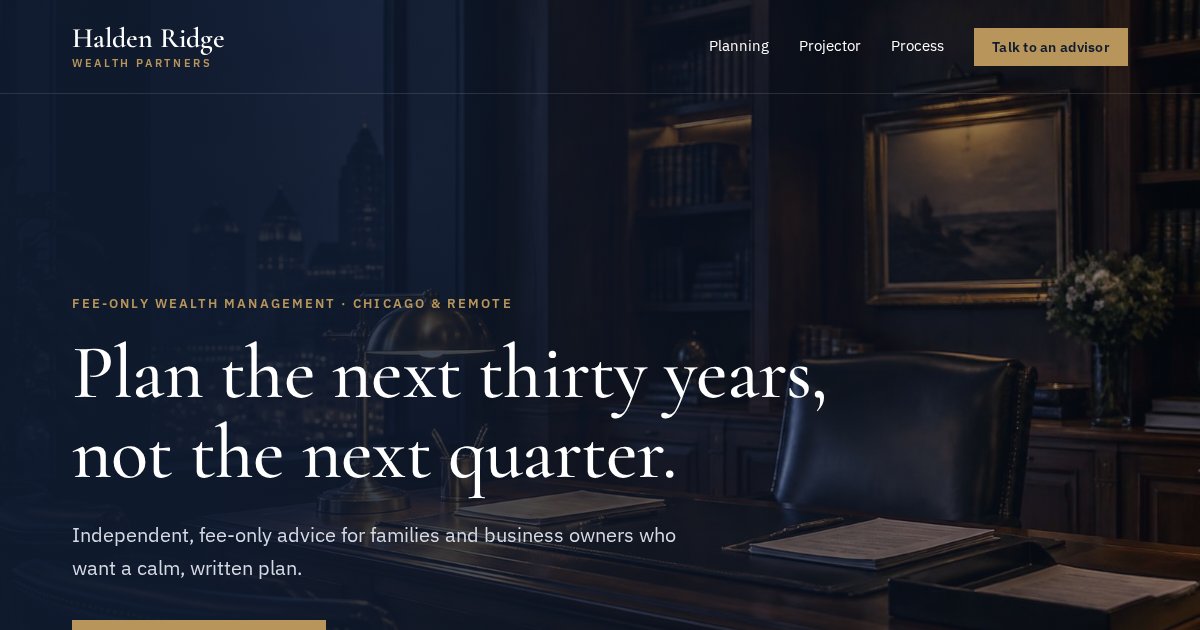
Notice how deep navy, brass accents and lots of space make the firm feel established before you read a word. The design is doing the trust work.
Open the live demoDesign and first impressions on a phone
Most first impressions now happen on a small screen, often in a hurry, often after tapping a link in a social app or a Google result. That means your opening screen carries a huge amount of weight. If the logo is huge, the menu is clumsy and the headline wraps into six lines, the visitor's first impression is effort. Choosing a design means choosing what that small screen says in the first two seconds.
It's worth saying the reverse too: a clean, confident phone layout is one of the easiest ways for a small business to look bigger than it is. Big brands often have bloated sites with cookie banners, popups and chat bubbles fighting each other. A focused small business site can feel calmer and more trustworthy by comparison.
Start with your goal, not your taste
The most common mistake I see: choosing a design because you like it. You're not the customer. The design's job is to get your customer to do one thing.
Before choosing colors, fonts or templates, decide what the website must achieve: calls, quote requests, bookings, sales, sign-ups or donations. The right design is the one that makes that action easiest for your ideal customer.
When I start a project, the first question isn't "what style do you like?" It's "what should a visitor do, and what happens to your business when they do it?" The answer changes the whole design.
| Main goal | What the design needs to prioritise | Example demo |
|---|---|---|
| Phone calls | Tap-to-call button always visible, phone number at top, trust right away | Copperline Plumbing |
| Quote requests | Short form or estimator high on the page, clear service list | Summit Ridge Roofing |
| Bookings | Calendar or booking bar near the top, availability visible | Hearth & Ash |
| Online sales | Product photos, filters, fast cart, shipping info | Larkspur Supply |
| Sign-ups / trials | One clear offer, product screenshots, pricing | Relay CRM |
| Donations | Emotional story, impact numbers, simple giving form | Wellspring Relief |
Write your goal as one sentence: "I want homeowners in my area to request a roof inspection." Then judge every design option against that sentence. A gorgeous full-screen video hero that pushes the form below the fold fails the sentence. A plain hero with a clear form passes it.
Primary and secondary goals
Most sites have one main goal and one or two backups. A dentist wants bookings first, phone calls second, newsletter sign-ups a distant third. The design should reflect that order: one bold button color for the main action, quieter styles for everything else.
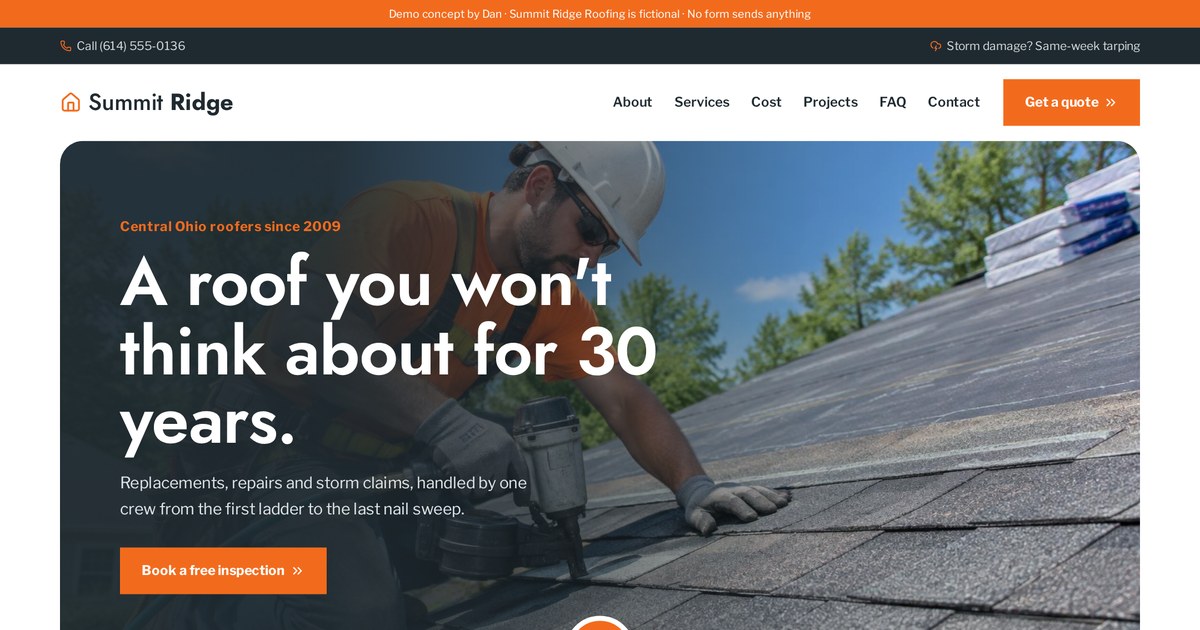
The estimator sits right in the opening section, because the goal is quote requests. The style is strong and practical, not fancy.
Open the live demoTurning the goal into design rules
Once the goal is clear, I turn it into a few rules that guide every later choice. For a booking-led clinic it might be: the booking button appears on every screen, prices or ranges are visible, real staff photos appear above the fold, and no section is longer than a phone screen without a way to book. For an online store: product photos are the hero, filters are always one tap away, shipping and returns are visible before checkout. These rules stop the design wandering off into decoration.
It also helps to decide what the site is not for. A plumber's site is not the place for a long company history. A SaaS homepage is not the place for every feature. Saying no early keeps the design focused.
Know your visitor: who they are, what device, what they fear
A design that works for a 25-year-old shopping for sneakers will fail a 60-year-old looking for a lawyer. Same internet, very different visitor.
Choose your website design around your visitor: their age, how they found you, what device they use, how urgent their problem is and what worries them about buying. Then pick a style, layout and tone that removes those worries.
I build a quick visitor sketch before I touch design. Not a fancy persona with a stock photo, just honest answers to five questions:
- Who are they? Age range, job, budget, how comfortable they are online.
- How do they arrive? Google search, an ad, Instagram, a referral, a printed card?
- What device? For most local businesses, the majority will be on a phone.
- How urgent is it? A burst pipe at midnight is not a kitchen remodel next spring.
- What do they fear? Being overcharged, being ignored, getting a bad result, looking silly.
Urgency changes everything
Urgent visitors want a phone number and proof you're available now. They don't want to scroll through your mission statement. Considered buyers, like someone choosing a wealth advisor or a wedding venue, want to linger, compare and feel reassured. Urgent sites should be direct and bold; considered sites can be calmer and more editorial.
Fear is a design brief
If your visitors fear hidden prices, show a price range or an estimator. If they fear you'll be pushy, use softer button wording like "See my options". If they fear you're too small, show real credentials, licences and photos of your actual team. Each fear turns into a section or design choice.
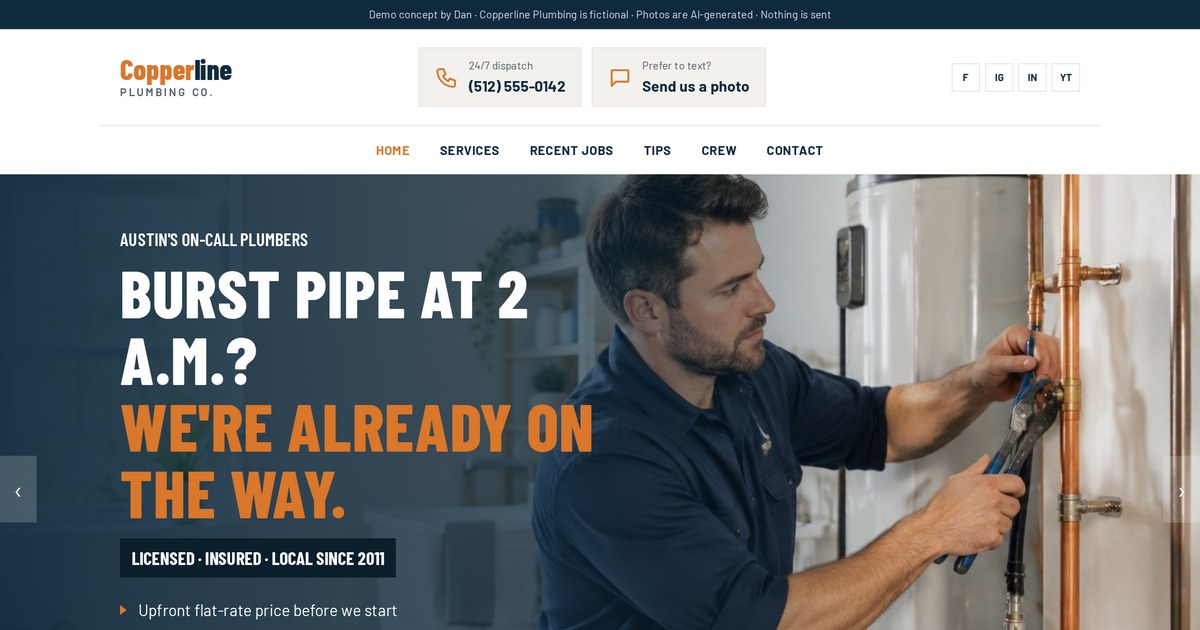
Designed for someone with water on the floor: phone number up top, emergency messaging, big tap targets. No hunting.
Open the live demo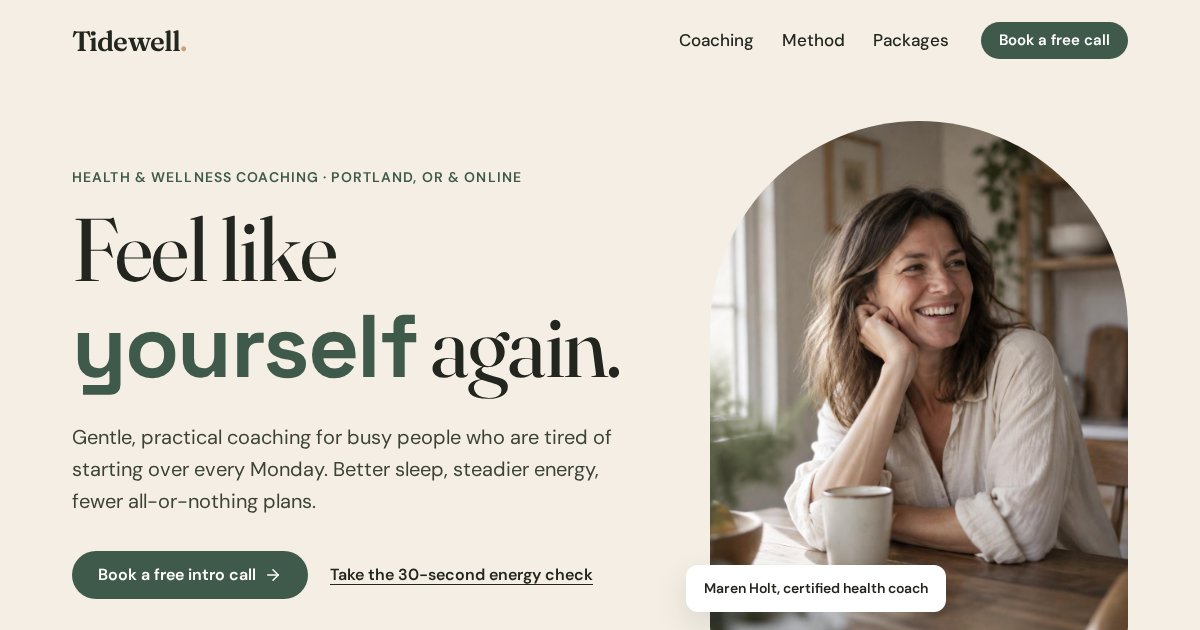
Designed for someone considering a big personal decision: warm tones, slower pace, a gentle quiz before any hard sell.
Open the live demoWhere visitors come from changes the page
Someone who searched "emergency electrician near me" lands with a specific need. Someone who clicked an Instagram ad was scrolling for fun two seconds ago. Someone who was referred by a friend already half-trusts you. Each needs a slightly different first screen: proof of availability, a strong hook, or simply a clear way to get in touch. If most of your traffic will come from ads, it's often worth building separate landing pages that match each ad, which I explain in my landing page guide.
Look at competitors the right way (copy the job, not the look)
Looking at competitors is smart. Copying them is how you end up invisible. Here's how I do competitor and inspiration research without making a clone.
Study 5 to 10 competitor sites to learn what customers in your industry expect: the pages, information and trust signals. Then deliberately choose a different visual direction so you stand out, instead of copying their look.
What to collect
- What's in their top section: headline, button, phone, form?
- Which pages they all have (pricing, service areas, FAQ, gallery).
- What proof they show: licences, reviews, years in business, guarantees.
- What they all leave out, because that's your opening.
- What colors and styles they all share, so you can avoid them.
Put screenshots side by side. In most local industries you'll notice that everyone uses the same blue, the same stock photo of a smiling technician and the same "Quality Service You Can Trust" headline. That's the look to avoid.
Where to find inspiration outside your industry
The best ideas usually come from other industries. A plumbing site can borrow the confident type of a sports brand. A law firm can borrow the calm spacing of a luxury hotel. Galleries like Awwwards, Dribbble, Land-book and Godly are full of ideas; just remember many of those designs are made to impress designers, not to convert customers.
Don't copy. Really.
Copying a competitor's layout and words is a legal risk and a business risk: you look like a knockoff of the business you're trying to beat. I use references to understand structure and mood, then I write new copy, pick a new palette and design new sections. It's the same rule I follow with my own demos.
| Borrow | Don't borrow |
|---|---|
| Section order that answers customer questions | Their exact headlines and paragraphs |
| The type of proof that works in your industry | Their photos, logos or illustrations |
| A general mood (premium, friendly, bold) | Their exact color palette and fonts |
| Useful tools like estimators | Their brand name style or slogan |
A simple competitor scorecard
I give each competitor site a quick score out of five on clarity (do I know what they do in five seconds?), trust (do they look established and real?), ease (can I contact or buy in two taps?), speed on a phone, and memorability (would I remember them tomorrow?). The pattern usually jumps out: everyone scores fine on trust and badly on ease and memorability. That tells you where your design can win.
Website design styles explained
Most websites fall into a handful of styles. Knowing their names makes it much easier to tell a designer what you want, and to recognise what you don't.
Common website design styles include minimal, editorial, bold, luxury, playful, corporate, dark and organic. Each sends a different signal. Choose the one that matches how you want customers to feel and what your price point is.
Here's my quick style chooser. Each card shows a typical palette and font pairing, who it suits, and one of my demos that uses it. Click any card to see the style live.
Tech, SaaS, consultants, anyone who wants to look clear and modern.
See it: Relay CRMBooks, food, coaching, brands with a story to tell.
See it: Inkwell & LanternGyms, sports, events, youth brands.
See it: Forge AthleticHigh-end retail, interiors, jewellery, hospitality.
See it: Maison VerreFinance, law, insurance, B2B services.
See it: Halden RidgeHome services, cleaners, clinics, family businesses.
See it: BrightnestSteakhouses, nightlife, entertainment, premium products.
See it: Hearth & AshWellness, food, eco brands, non-profits.
See it: Wellspring ReliefMinimal
Lots of white space, few colors, simple type. It's popular because it's hard to get badly wrong, and because it puts the content front and centre. The risk is looking generic; minimal sites need one strong idea, like a great headline or a striking product shot, or they blend into the background.
Editorial
Inspired by magazines: big serif headlines, interesting image crops, text that's meant to be read. It works when you have a story and good photos. It's slower to design, because the content and layout have to be planned together.
Bold
Huge type, punchy colors, strong contrast, movement. It grabs attention and suits brands with energy. It's tiring if it's used everywhere, so I keep bold styles disciplined with one accent color and plenty of breathing room.
Luxury
Restraint is the whole trick. Muted palettes, generous space, slow reveals, fewer words, beautiful photography. Luxury collapses the moment you add a flashing banner or six fonts.
Corporate and trust
Steady, structured, conservative colors like navy, grey and gold. Not exciting, and it's not meant to be. When people trust you with their money or legal problems, "boring and solid" is a feature.
Friendly, dark and organic
Friendly styles use rounded shapes, warm accents and real people. Dark styles create drama and make photos glow, but need careful contrast for readability. Organic styles lean on earthy tones, textures and softer fonts. All three are about feeling, so match them to the feeling your customer should have when they land.
Design trends: use them carefully
Every year has its trends: oversized type, bento grids, glassy cards, gradients, 3D shapes, scroll animations. Trends are useful as a sign of what feels current. They're dangerous when they become the whole design, because they date fast and they make your site look like everyone who followed the same trend. I borrow one trend at most, and only when it supports the content.
A safer way to feel modern is to get the timeless things right: generous spacing, good type sizes, strong photos and a clear layout. Those don't go out of fashion.
Matching a website design style to your industry
Your industry sets expectations. Meet them enough to feel trustworthy, then break one or two so people remember you.
Match your website style to what your industry's customers expect, such as calm and solid for finance, clean and bright for health, bold and practical for trades. Then add one distinctive element, like an unusual color or an interactive tool, so you don't look like every competitor.
Here's how I think about it, industry by industry. Treat it as a starting point, not a rulebook.
| Industry | Usual expectation | How to stand out |
|---|---|---|
| Home services (HVAC, plumbing, roofing) | Blue, trucks, phone number | Unusual color pairing, live estimator, real team photos |
| Dental and medical | White, teal, smiling stock models | Warmer palette, treatment explorer, real clinic photos |
| Legal and finance | Navy, gold, columns | Calculators, plain-English copy, modern type |
| Restaurants | Food photos, menu PDF | Interactive menu, table booking bar, mood lighting |
| Fitness and coaching | Black, neon, before/after | Quizzes, timetables, a clear first step |
| E-commerce | Product grid, sale banners | Strong brand story, quick view, editorial product shots |
| SaaS and apps | Purple gradients, dashboards | Real product UI, honest pricing, a single clear offer |
| Non-profits and churches | Stock photos of hands | Real stories, impact counters, simple giving or visiting |
Same industry, two directions
I've built two HVAC sites in very different styles to show this. Both look like heating and cooling companies. Neither looks like the other.
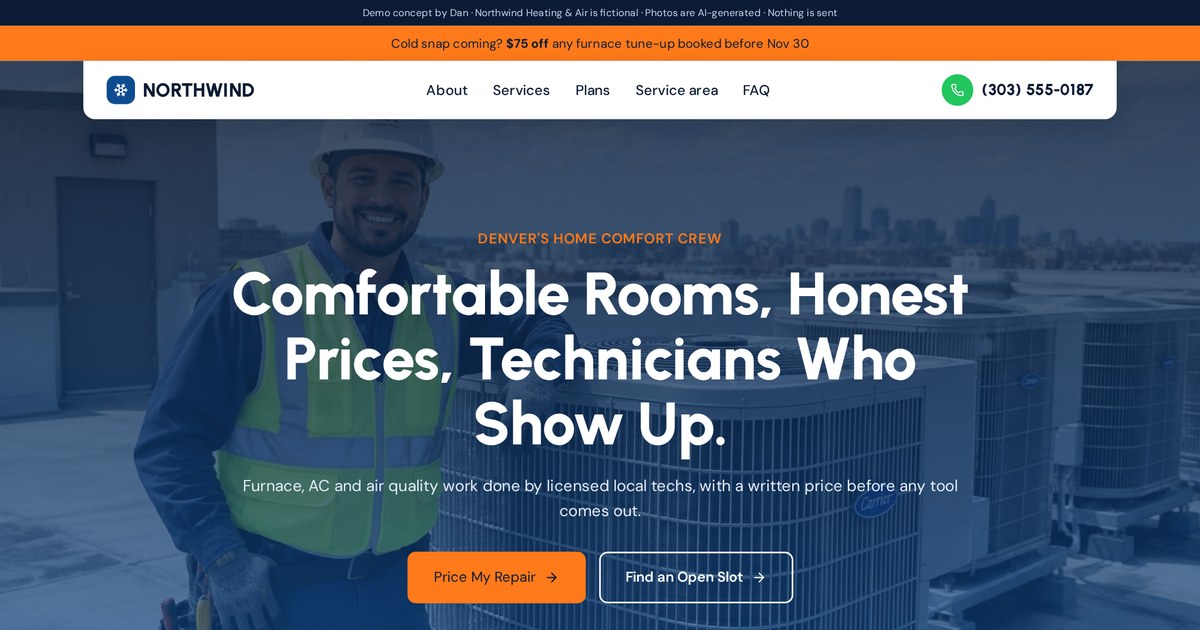
Arctic blue and orange, big rounded sections, a friendly local feel.
Open the live demo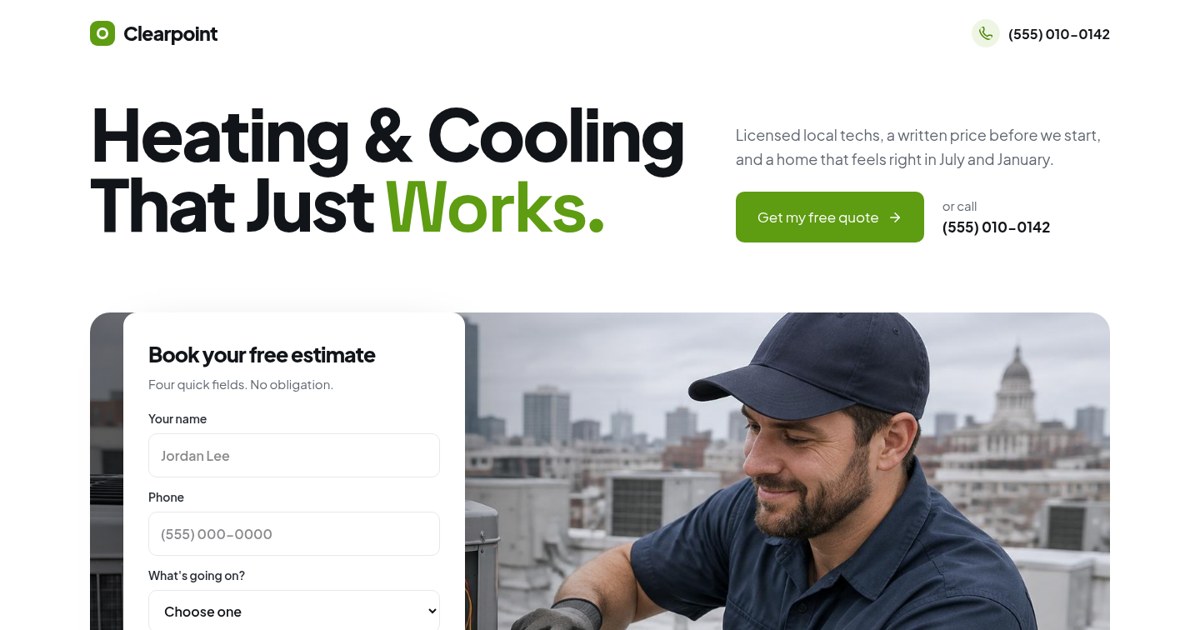
Crisp white, charcoal and green, built purely around a four-field estimate form.
Open the live demoAnd two stores: one bright and practical, one hushed and luxurious. The products could almost be the same. The price you'd expect to pay is completely different.
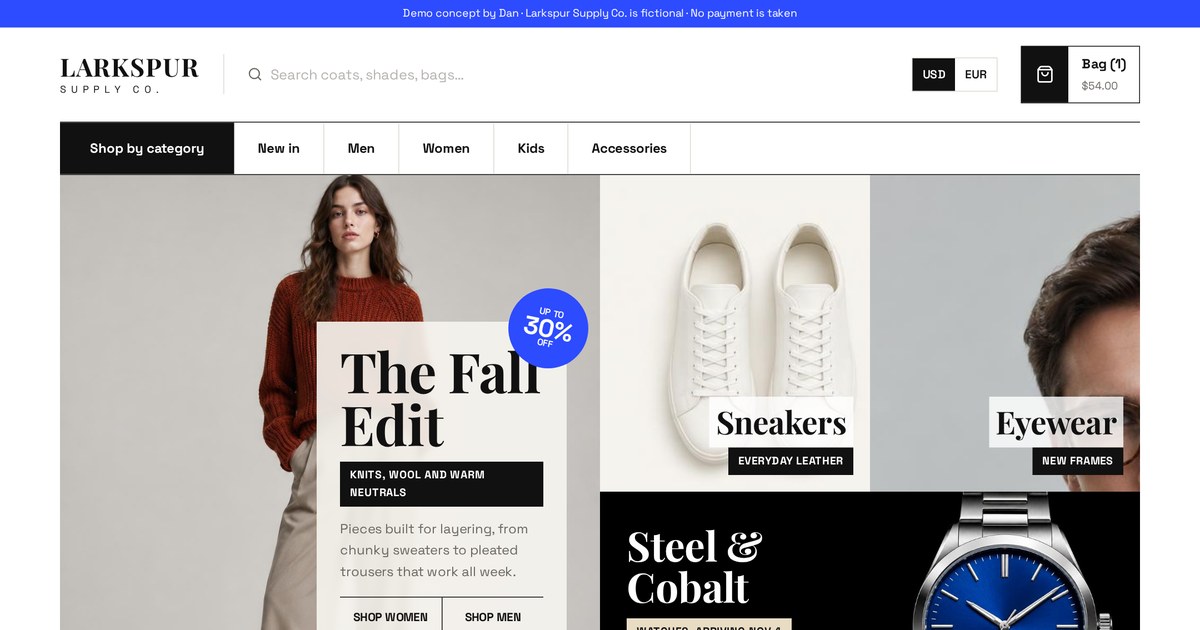
Practical shopping: search, currency switch, quick view and a fast cart.
Open the live demo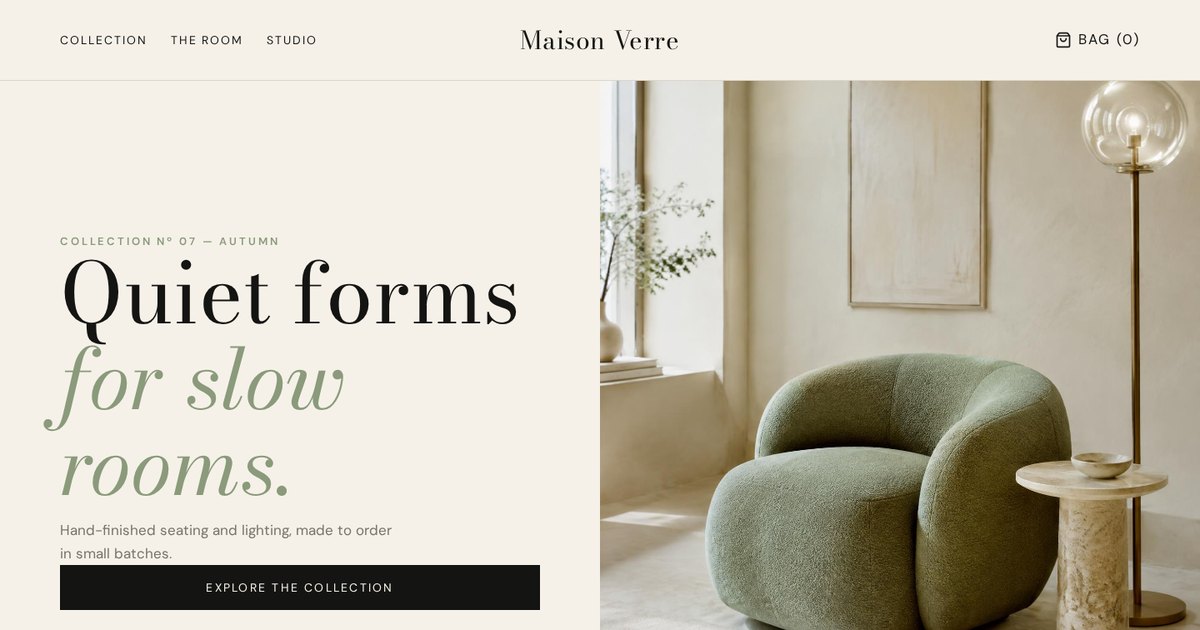
Ivory, sage and black, material swatches and shop-the-room dots. Slow and expensive on purpose.
Open the live demoHow to choose a color scheme for your website
Color is the fastest way to set a mood, and the fastest way to make a site look amateur. Here's my simple method.
Choose a website color scheme with one main brand color, one or two neutrals for backgrounds and text, and one accent color reserved only for buttons and key actions. Check contrast so text is readable, and test the palette on a phone.
My 60-30-10 starting point
- About 60% neutral: backgrounds like white, off-white, sand or deep charcoal.
- About 30% brand color: headers, sections, illustrations, highlights.
- About 10% accent: buttons, links and the things you want clicked.
The accent rule matters most. If your accent color appears on decorations as well as buttons, people stop knowing what's clickable. On my own portfolio, electric blue means "you can click this". That's it.
Where to get a starting palette
Start from your logo if you have one. If you don't, start from a feeling: calm, energetic, premium, natural. Tools like Coolors or Adobe Color help explore, but always test colors on real sections, not just swatches. A color that looks lovely as a square can look exhausting as a full-screen background.
What colors actually say
Color meanings vary by culture and context, so I don't treat them as science. Roughly though: blues and navies read as stable, greens as natural or financial, oranges and reds as energetic and urgent, black and gold as premium, soft pastels as gentle. The bigger effect is contrast with your competitors.
Contrast is not optional
Light grey text on white looks elegant in a mockup and unreadable on a phone in sunlight. Accessibility guidelines recommend a contrast ratio of at least 4.5 to 1 for normal text. Free contrast checkers tell you in a second. I check every text and button color before a site goes live.
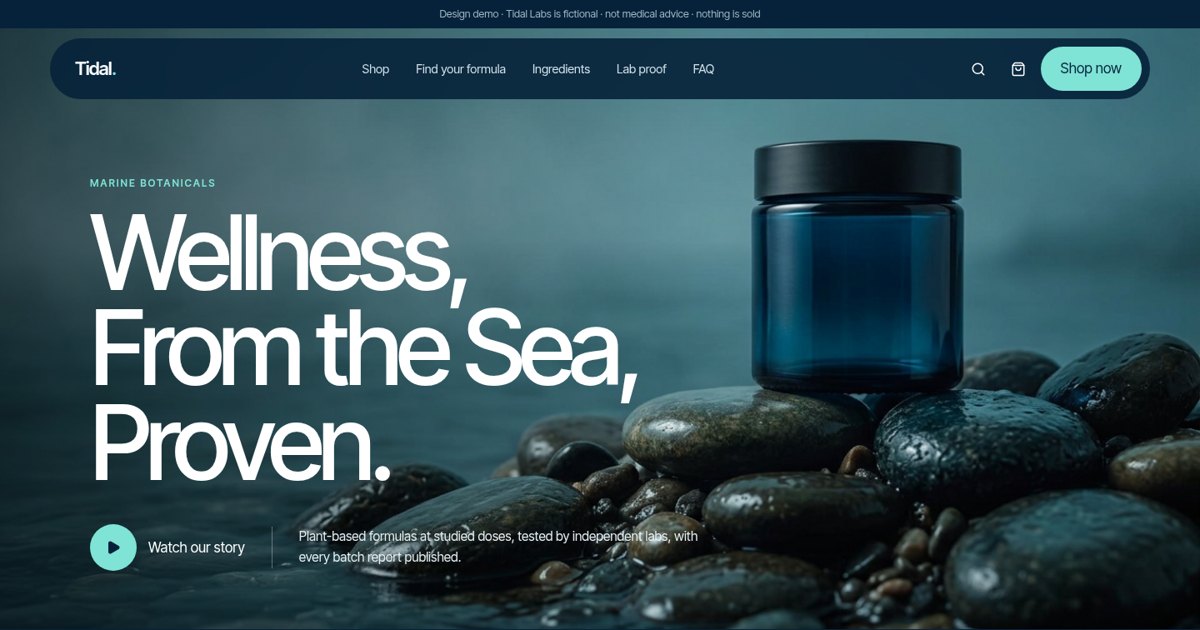
A full ocean palette: deep navy and sea-blue for depth, soft sea-mist neutrals, and one aqua accent for every button.
Open the live demoDark mode and dark backgrounds
Dark backgrounds can look rich and premium, especially for food, entertainment and luxury products, because photos glow against them. But long paragraphs of light text on dark backgrounds are tiring to read. My approach: use dark for dramatic sections and keep long reading content on light backgrounds, or make sure dark sections use slightly larger text and comfortable line spacing.
Testing your palette
Before committing, I build the homepage opening section, one service card, a form and a footer in the chosen palette. If all four look good together and the button is the most noticeable thing on the screen, the palette works. If the button gets lost, the palette needs a stronger accent.
How to choose fonts for your website
Fonts are the voice of your site before anyone reads a sentence. Two fonts, chosen well, will do more than five chosen randomly.
Pick two fonts at most: one with personality for headlines and one very readable font for body text. Make sure both load fast, look good on phones and cover the characters you need. Use size and weight, not extra fonts, to create hierarchy.
Serif, sans-serif and display
| Type | What it looks like | Feeling | Good for |
|---|---|---|---|
| Serif | Small strokes on letters | Classic, editorial, trustworthy | Law, books, luxury, food |
| Sans-serif | Clean, no strokes | Modern, clear, friendly | Tech, services, body text almost everywhere |
| Display | Decorative or very heavy | Loud, characterful | Big headlines only |
| Monospace | Every letter same width | Technical, coded | Developer brands, small accents |
My pairing rules
- Contrast, not conflict: a serif headline with a sans body, or one family in two weights.
- Body text at 16px minimum on phones, often 17 to 18px on desktop.
- Line length around 60 to 75 characters for comfortable reading.
- Avoid the defaults everyone uses unless you have a reason. They make a site look templated.
- Load only the weights you use. Each extra weight is extra download time.
Free sources like Google Fonts have hundreds of solid options. Paid fonts can give a unique look, but check the web licence covers your traffic.
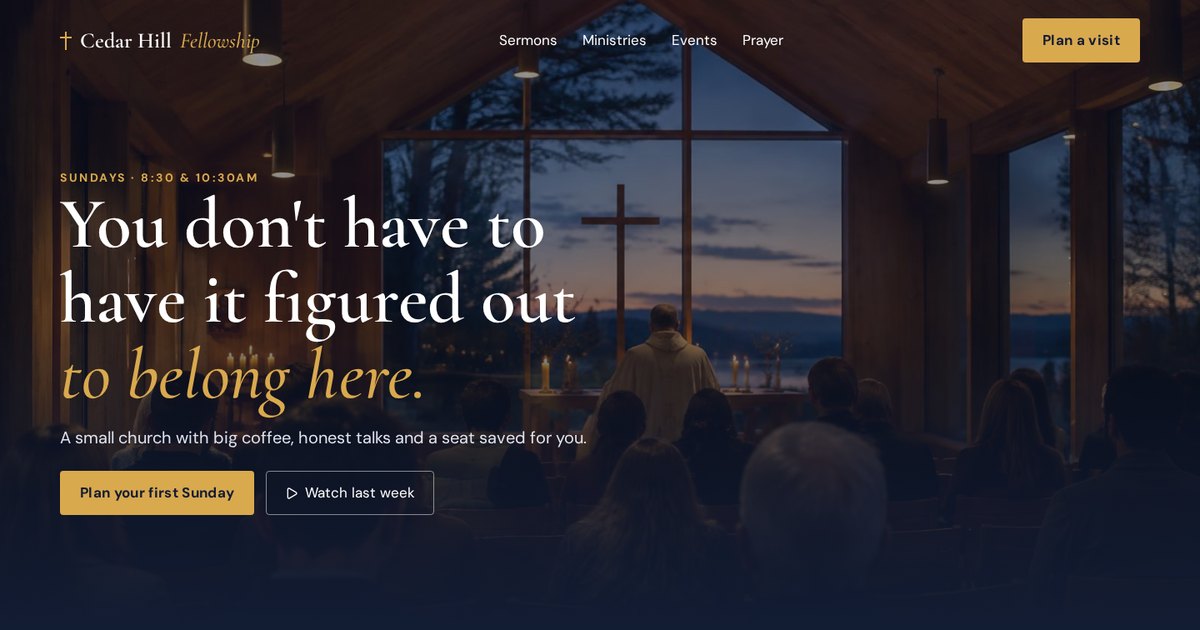
A warm serif for headlines with a calm sans for reading: welcoming, a little traditional, still modern.
Open the live demo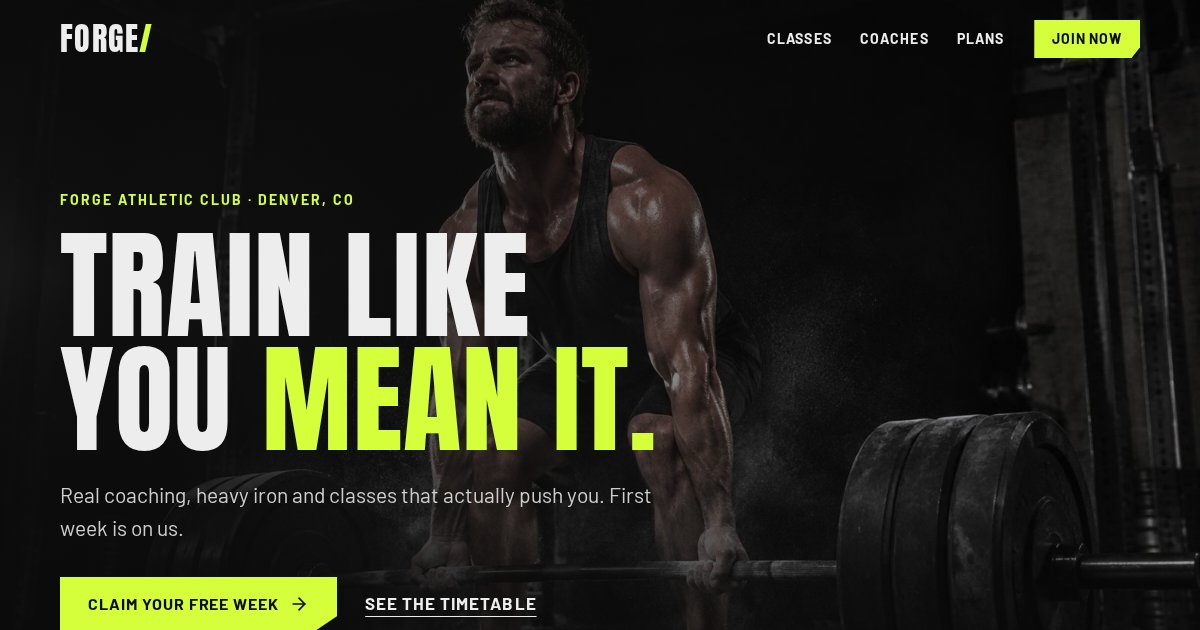
Heavy condensed headlines that shout, paired with a plain sans so timetables stay readable.
Open the live demoType size and hierarchy
Most sites need only a handful of text sizes: a big page headline, a section heading, a smaller heading, body text and a small label size. Consistent sizes create rhythm and make pages easy to scan. A common amateur sign is ten slightly different sizes scattered around, which makes everything feel a bit off without anyone knowing why.
Labels and small print are where readability usually fails. I keep labels at a size that's still comfortable on a phone and avoid all-caps tiny text for anything important.
Photos, illustrations and video: real vs stock vs AI
Images do more to make a site feel real (or fake) than anything else. This is where I see the most trust quietly lost.
Use real photos of your team, work and place wherever you can, because they build trust. Use stock or AI images only for supporting backgrounds and mood, and avoid anything that looks staged, generic or misleading. Keep every image compressed and correctly sized.
Real photos
Your actual team, your van, your clinic, your finished projects. They don't need to be perfect. A half-day with a decent photographer is one of the best investments a local business can make, and a modern phone in good light is a respectable backup.
Stock photos
Fine for textures, abstract backgrounds and general scenes. Risky for people: visitors recognise the same smiling headset model from a dozen other sites. If you use stock people, pick natural, candid shots and never imply they're your staff or customers.
AI images
AI images can be great for mood and product concepts, and I use them in my demos. But they have tells: odd hands, gibberish signs, too-perfect lighting, people frozen in sterile rooms. I've reworked demo previews myself when they looked artificial. Rule of thumb: never use AI to show something that's supposed to be real, like your team, results or reviews.
Illustrations, icons and video
Illustrations suit software, education and brands without photogenic products. Pick one illustration style and stick with it. Icons should all come from one set. Video works for showing a process or a person speaking, but autoplaying background video is heavy on phones; I use a poster image and let people choose to play.
| Image type | Builds trust? | Best use |
|---|---|---|
| Real team and work photos | Highest | About, services, galleries, hero |
| Product photography | High | Stores, product pages |
| Stock photos | Low to medium | Backgrounds, abstract scenes |
| AI images | Low if overused | Mood, concepts, clearly illustrative uses |
| Illustration | Medium | Software, explainers, playful brands |
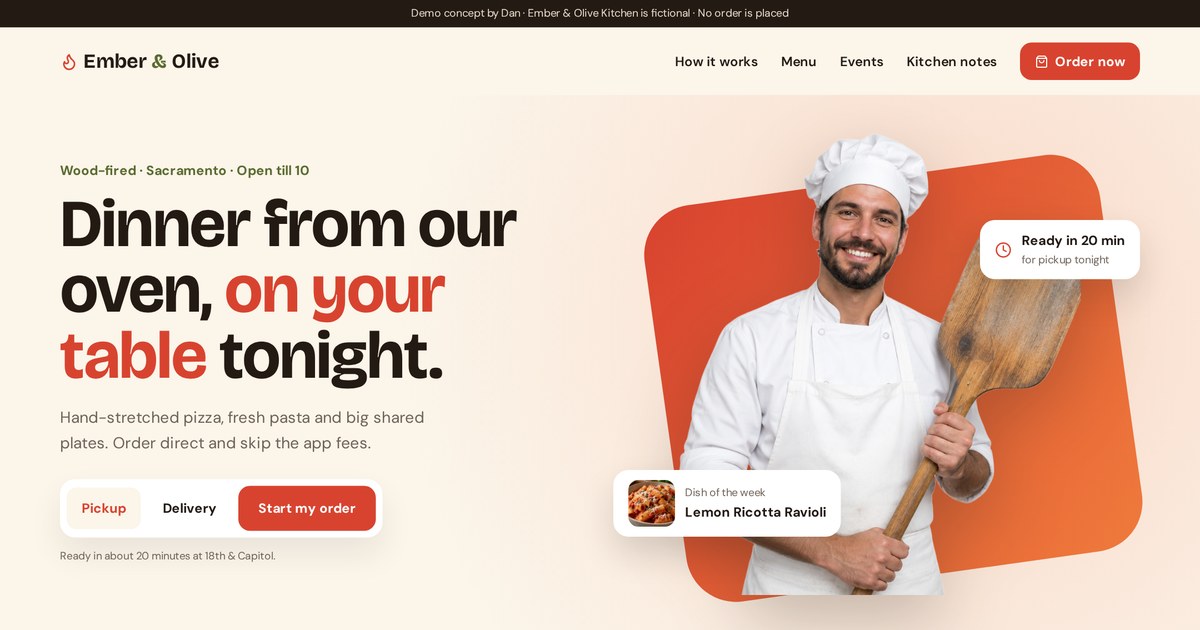
Food sites live or die on photos. Notice how warm, close crops make the menu feel tasty.
Open the live demoChoosing your website layout and page structure
Layout is the order you tell your story in. Get the order right and a simple design works. Get it wrong and no font will save it.
A good website layout puts the most important message and action at the top, then answers the visitor's questions in order: what you do, who it's for, why trust you, how it works, what it costs and what to do next. Choose page layouts based on content, not templates.
The homepage order I start from
- 01Opening section
Clear headline, one-line explanation, main button, a relevant image.
- 02Trust strip
Real credentials, licences, ratings or client logos, only if they're real.
- 03Services or products
What you offer, grouped the way customers think about it.
- 04Why us
Two to four real differences, not "quality and service".
- 05How it works
Three or four steps that make starting feel easy.
- 06Proof
Projects, case studies, photos, reviews if you have them.
- 07Pricing or estimator
Ranges, packages or an interactive tool.
- 08FAQ
The questions that stop people contacting you.
- 09Closing call to action
Repeat the main action with a final reassurance.
That's a default, not a law. A restaurant might move the menu and booking to the top. A SaaS product might put a product screenshot first. But every section should earn its place by answering a real question.
Common layout patterns
| Pattern | How it looks | When to use it |
|---|---|---|
| Split hero | Text left, image right | Services, apps, most business sites |
| Full-width image | Text over a big photo | Hospitality, real estate, luxury |
| Card grid | Repeated tiles | Services, products, blog posts |
| Zigzag | Alternating image and text rows | Features and benefits |
| Long-form | One column, story-led | Sales pages, guides like this one |
| Dashboard | Panels and data | Software and member areas |
How many pages do you need?
Most small business sites need a homepage, one page per main service, an about page, a contact page and legal pages. Separate service pages help visitors and help Google, because each page can target its own search. One giant page that tries to do everything usually does nothing well.
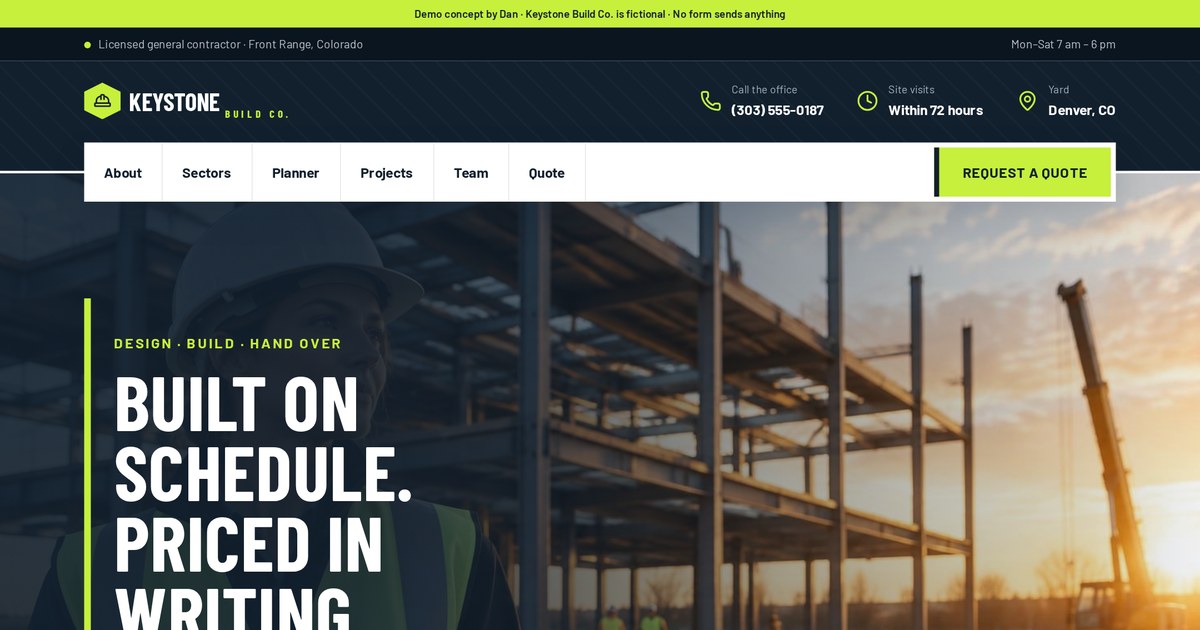
Sector navigation, project filters and an estimator, each in its own clear block. Easy to scan for a busy property manager.
Open the live demoWireframes: the cheapest design decision
A wireframe is a grey-box sketch of a page: where the headline goes, where the form sits, how many cards, what comes next. It strips out color and photos so you can judge the order and priority on their own. Wireframes are fast to make and fast to change, which is why I always show one before designing in full. Changing the order of sections in a wireframe takes minutes; changing it after a site is built takes days.
Service pages deserve their own layout too. Mine usually follow: problem, solution, what's included, process, proof, price guidance, FAQ, call to action. Each service page can then target its own search phrase, which helps both visitors and Google.
Navigation and menus: helping people find things
Your menu is a promise about what's inside. Keep it short, use the words customers use, and make it work with a thumb.
Keep your main menu to around five to seven items, label them in plain words customers would search for, put the main call to action as a button on the right, and make sure the mobile menu is easy to open and close with one thumb.
- Use "Services" or "Pricing", not clever labels like "Our Journey".
- Put the most important pages first and "Contact" or the button last.
- Group sub-pages in a dropdown only if you have many services.
- Keep the header slim on phones; it shouldn't eat a third of the screen.
- Make your logo link home, always.
- Add breadcrumbs on deep sites so visitors know where they are.
Sticky headers and sticky buttons
A header that stays at the top while scrolling is helpful on long pages. On phones, I often prefer a small sticky bar at the bottom with "Call" and "Get a quote", because that's where thumbs are.
Footer navigation
Footers are where people go when they're looking for something specific: contact details, service areas, legal pages, careers. A tidy footer quietly helps both visitors and search engines.
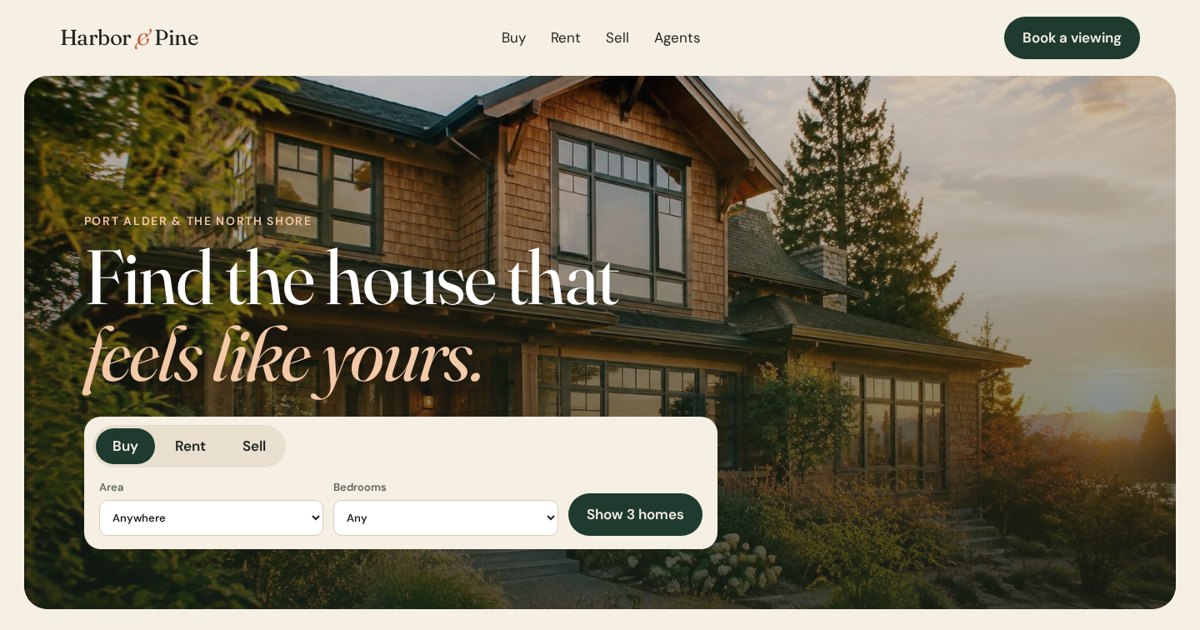
Buy, Rent and Sell are the menu and the tabs, exactly the words people use. Filters do the rest.
Open the live demoTemplate vs custom website design: which should you choose?
This is the question I'm asked most. The honest answer is "it depends", so here's what it depends on.
Choose a template if you need a simple site fast on a small budget and your offer is standard. Choose custom design if you need to stand out, have a specific conversion goal, need interactive tools or plan to grow. Many businesses start with a template and move to custom later.
| Template | Custom | |
|---|---|---|
| Cost | Lower | Higher |
| Time to launch | Days to a few weeks | A few weeks to a few months |
| Uniqueness | Others may use the same design | Built only for you |
| Fits your content | You bend content to fit | Design fits your content |
| Conversion focus | Generic | Built around your goal |
| Interactive tools | Limited or plugins | Anything you need |
| Speed | Often heavy | Can be very lean |
When a template is fine
You're testing an idea, you have very little content, your budget is tight, or you just need to exist online with correct contact details. A well-chosen template, customised with your own photos and colors, is far better than no site.
When custom pays off
When your website is a main source of leads or sales, when competitors all look the same, when you need a calculator, quiz or booking flow, or when you're investing in ads and need every visitor to count.
The middle option
Semi-custom: a strong base system, designed and adjusted for your business, with a few custom sections where it matters most, like the homepage hero and an estimator. That's often where I land with small businesses.
Questions to ask before buying a template
- Does the demo look good with real content, or only with the perfect sample photos?
- How fast is the template demo on a phone?
- Can I easily remove sections I don't need?
- How many other businesses in my area might be using it?
- Is it updated regularly and supported?
Not sure whether you need a template tweak or a custom design? Tell me what your site needs to do and I'll give you an honest answer.
Email meHow website builders and platforms limit (or free) your design
The platform you pick decides what's easy, what's hard and what's impossible. Choose it with your design in mind, not the other way round.
Website builders like Wix, Squarespace and Shopify make design easy within their limits. WordPress is flexible but depends on themes and plugins. Custom-coded or AI-assisted builds offer the most design freedom and speed but need someone skilled to build and maintain them.
| Platform type | Design freedom | Best for |
|---|---|---|
| Drag-and-drop builders | Medium; within their blocks | DIY owners, simple sites |
| Shopify and store platforms | Medium; theme-based | Online shops |
| WordPress with themes | High, but can get heavy | Content sites, blogs, many plugins |
| Custom code / modern frameworks | Very high | Unique designs, tools, speed |
| AI-assisted building | High with an experienced builder | Fast custom builds and iteration |
Questions I ask before choosing: who will update the site? How often? Do you need a store, bookings or members? Do you need custom tools? How important is speed? The answers often decide the platform before we even talk style.
Most of my demos are custom-built, which is why they can have estimators, quizzes and booking bars without plugins slowing them down. That's not right for every client, but it's why they can look the way they do.
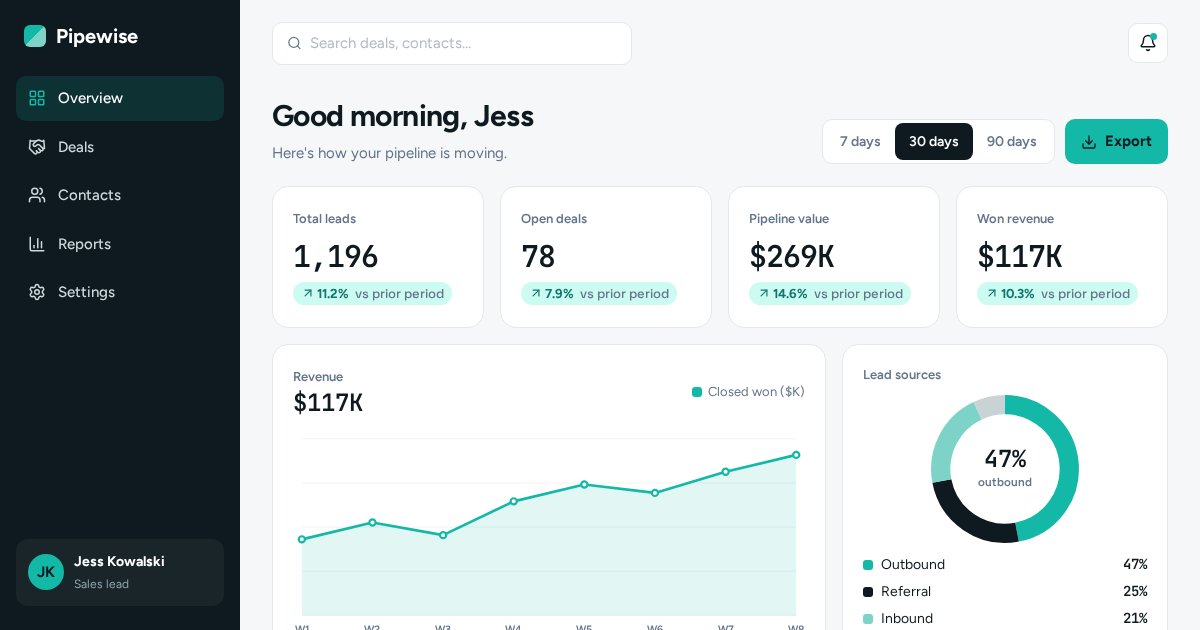
A live dashboard with a date-range switch that updates every chart. That kind of interaction is hard on page builders and easy custom.
Open the live demoOwnership and moving later
Some platforms make it hard to leave. Your design may be locked into their system, and moving means rebuilding. Before choosing, check whether you own your domain, your content and your design files, and how easy it is to export. Owning your domain in your own name is non-negotiable; everything else is a trade-off you should make knowingly.
Interactive website elements worth adding
Interactive tools are my favourite part of design. Done right, they turn a passive visitor into someone who's already halfway to buying.
Add interactive elements that help visitors make a decision: price estimators, calculators, quizzes, booking tools, before/after sliders, filters and comparison toggles. Skip decorative animation that slows the site and doesn't help anyone choose.
| Tool | What it does | Great for |
|---|---|---|
| Price estimator | Gives a rough cost from a few choices | Cleaning, roofing, laundry, construction |
| Calculator | Shows savings or payments | Solar, loans, wealth, car dealers |
| Quiz | Recommends the right option | Coaching, supplements, physio, books |
| Booking bar | Picks date, time and guests | Restaurants, clinics, salons |
| Before/after slider | Shows results visually | Dental, renovation, cleaning |
| Filters and tabs | Narrows options fast | Stores, real estate, timetables |
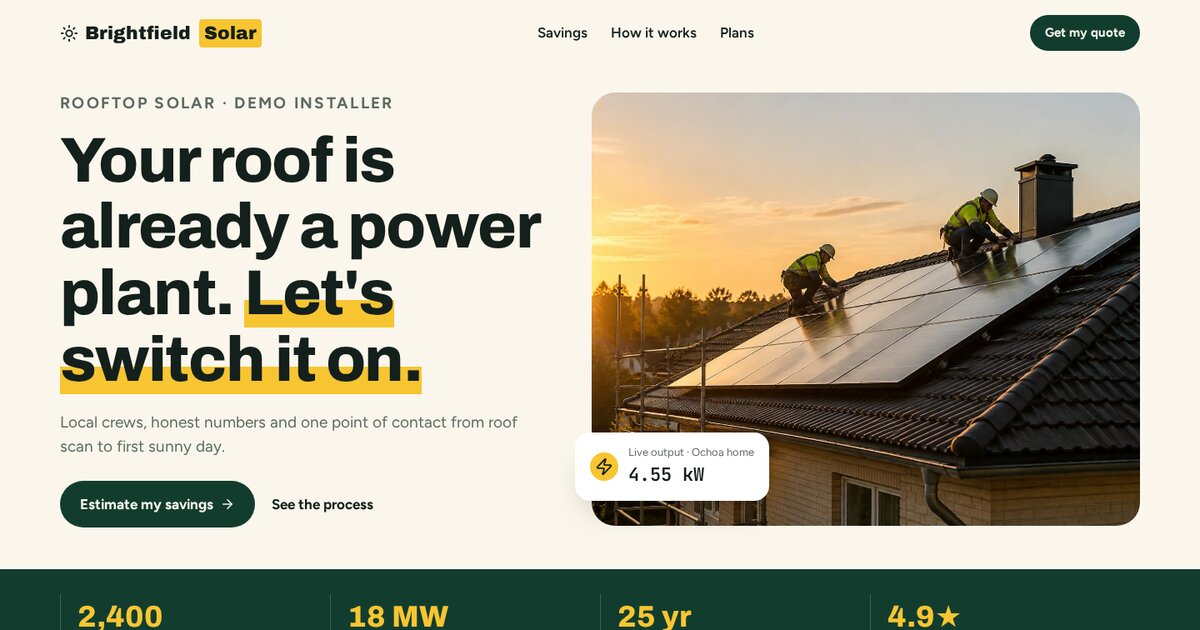
A savings calculator with a battery toggle. The visitor sees their own number, which is far more persuasive than a generic claim.
Open the live demo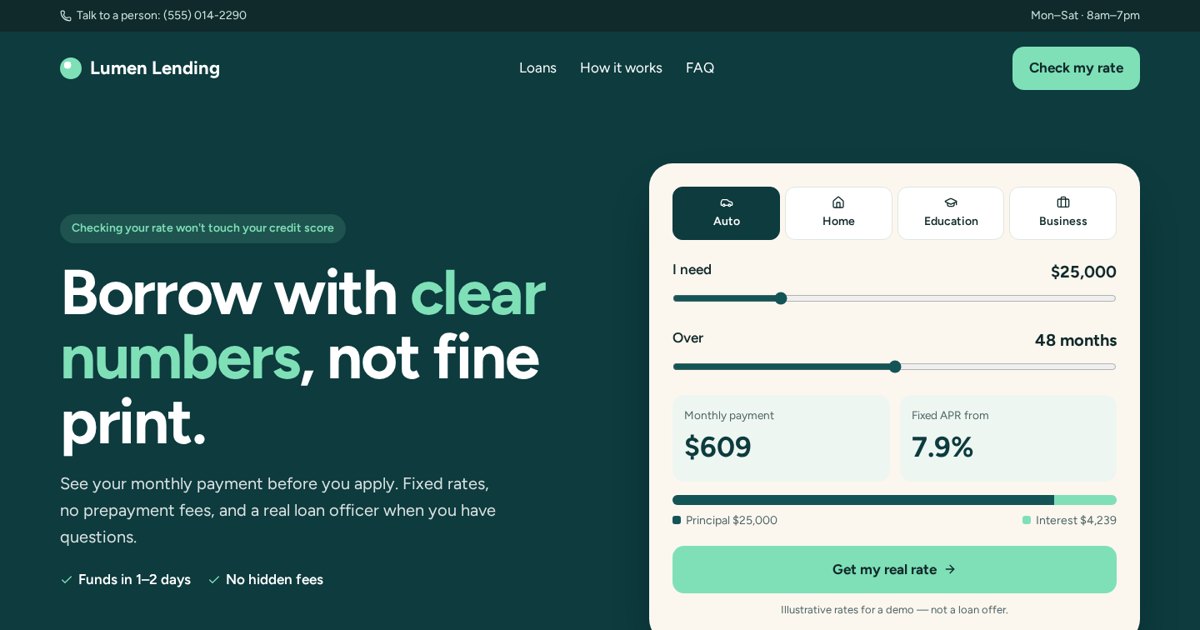
A live loan calculator with repayment bars and a two-step rate check.
Open the live demo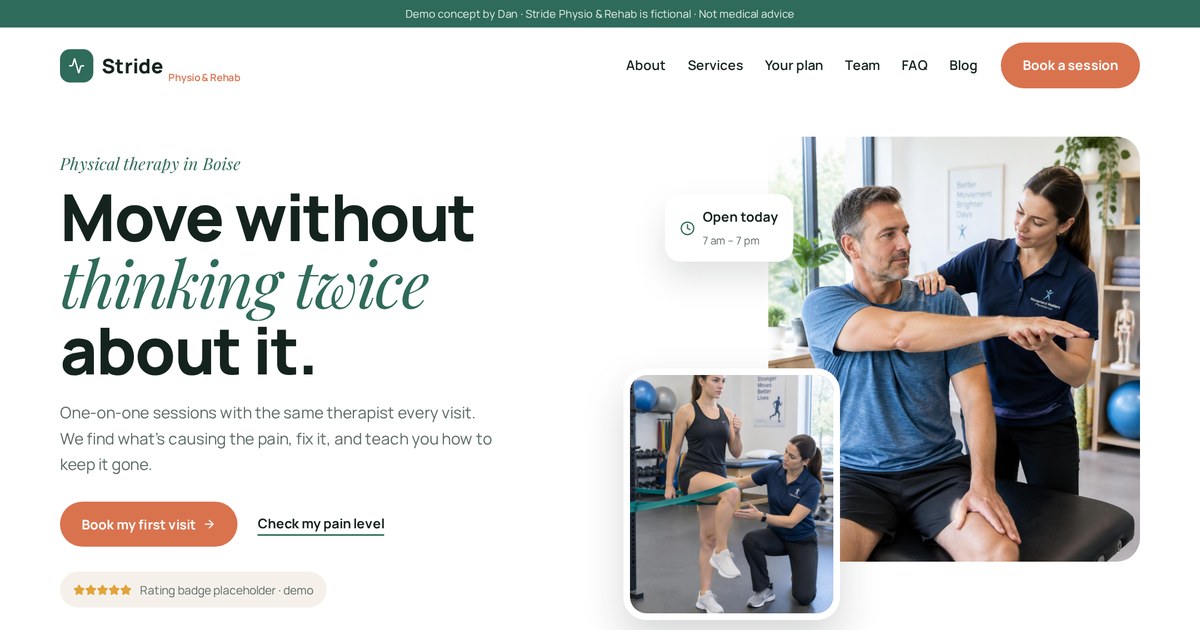
A pain-plan finder: answer a few questions, get a suggested treatment path and a booking button.
Open the live demoRules I follow
- Every tool must lead to a next step, like a form, a booking or a call.
- Results should be clearly labelled as estimates.
- Keep it to three to five inputs; more feels like homework.
- It must work perfectly on a phone.
- Animation should explain, not decorate.
Small interactions that matter
Not every interaction needs to be a calculator. Small touches help too: an FAQ that opens smoothly, a monthly/yearly price toggle, a tab set that shows services by type, a map of service areas, a gallery filter. Each one lets the visitor control what they see, which keeps pages shorter and easier to scan.
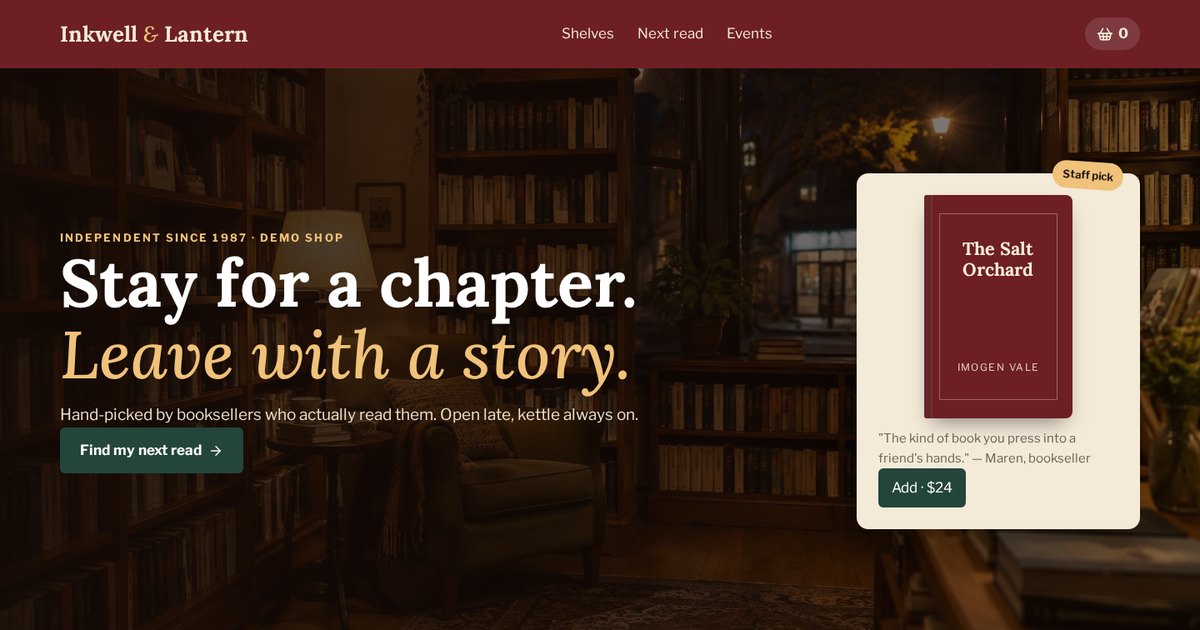
Genre shelves that scroll sideways and a two-question book picker. Browsing feels like being in the shop.
Open the live demoPhone-first design, speed and accessibility
A design that looks beautiful on your big monitor and clumsy on a phone is a design that fails most of your visitors.
Design for phones first: readable text, big tap targets, short forms and the main action visible without scrolling. Keep pages fast with compressed images and few heavy effects, and make them accessible with good contrast, labels and keyboard support.
Phone-first checklist
- Headline, short explanation and button visible on the first screen.
- Buttons at least about 44px tall, with space between them.
- Phone numbers tap to call.
- No sideways scrolling, no tiny text, no popups covering the screen.
- Forms use the right keyboard for email and phone fields.
Speed is a design decision
Big background videos, carousels with ten giant images, five font weights and scroll animations everywhere all slow a site down. Google measures loading, responsiveness and visual stability through Core Web Vitals. I choose effects that are light, compress every image and load below-the-fold images only when needed.
Accessibility helps everyone
Accessible design means people with low vision, colour blindness, motor difficulties or screen readers can use your site. It also makes the site better for everyone squinting at a phone outside. Good contrast, real text instead of text in images, descriptive alt text, labelled form fields and visible focus outlines are the basics.
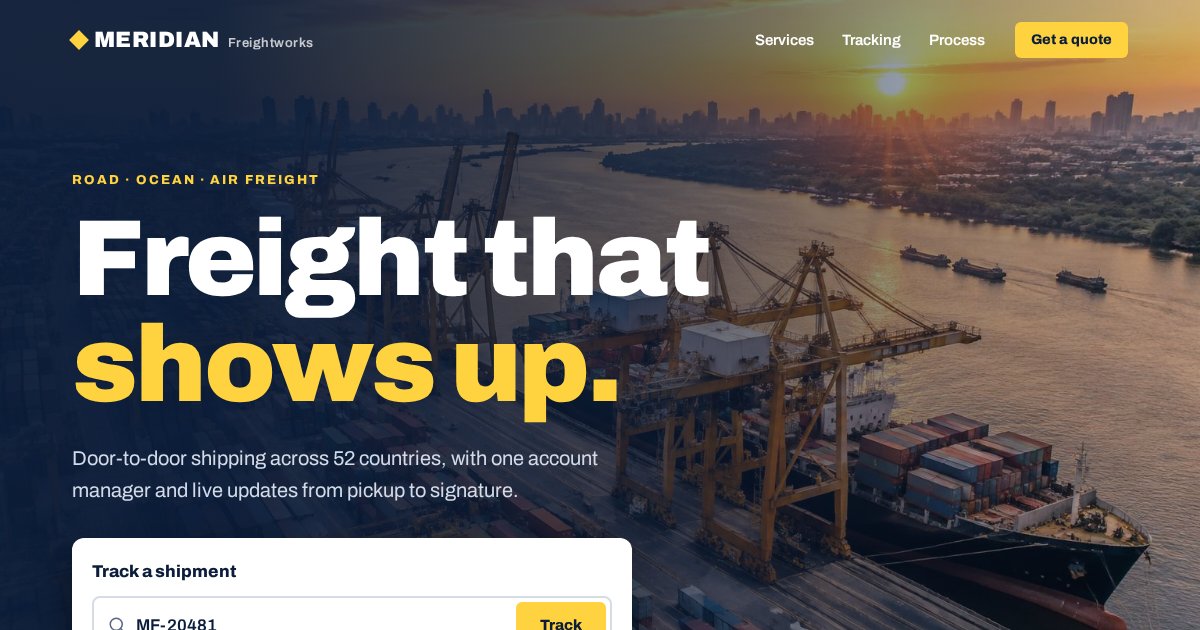
Built to work for a dispatcher on a phone: big tracking input, clear status steps, high contrast yellow on navy.
Open the live demoDesigning to convert: buttons, forms and trust without fake reviews
A website that gets compliments but no enquiries is an expensive brochure. Here's how design choices turn visits into leads.
To make a website design convert, give each page one main action, use one consistent button color, write button text that describes the result, keep forms short, place real trust signals near the action and remove anything that distracts from the goal.
Buttons
- One accent color only for main actions.
- Say the result: "Get my free estimate" beats "Submit".
- Repeat the main button after key sections, not just at the top.
- Secondary actions look secondary: outline or text links.
Forms
Every extra field costs you enquiries. Ask only what you need to respond well. If you need more detail, split it into short steps, starting with the easiest question. Tell people what happens after they submit and how fast you'll reply.
Trust without inventing it
Fake reviews are dishonest, can break consumer protection rules and destroy trust the moment someone notices. If you don't have reviews yet, you still have options: real photos of your work, licences and insurance, clear prices or ranges, a guarantee you'll honour, your process explained step by step, and a real person's name and face. I'm in that position with my own portfolio right now, so I use live demos as my proof instead.
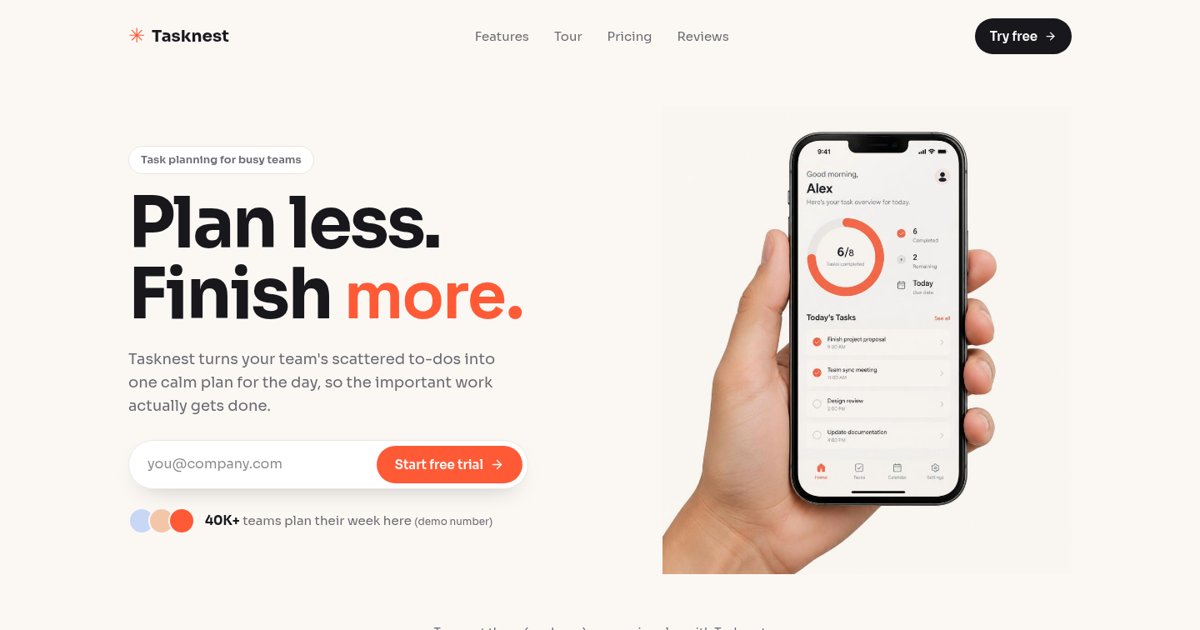
One offer, one button color, an email field right in the opening section. Everything else supports that one action.
Open the live demoA full funnel from ad to quiz to booking, with an "under the hood" panel showing how each step is tracked.
Open the live demoThe thank-you moment
Conversion design doesn't end at the button. After someone submits a form, show a clear confirmation: what happens next, how fast you'll reply, and what they can do meanwhile. A blank page or a tiny "Sent" message wastes the moment when the visitor is most interested. A good thank-you page can also offer a useful next step, like booking a time directly.
Website design and SEO: choices that help or hurt ranking
People ask "what is SEO website design?" It's simply designing so Google can read, load and trust your pages as easily as people can.
SEO-friendly website design uses real text instead of text in images, one clear heading per page, separate pages for separate services, fast-loading images, mobile-friendly layouts, descriptive links and a logical structure that search engines can crawl.
| Design choice | Helps SEO | Hurts SEO |
|---|---|---|
| Headlines | Real text in HTML headings | Text baked into images |
| Pages | One page per service or topic | Everything crammed on one page |
| Images | Compressed, sized, alt text | Huge files, no descriptions |
| Navigation | Plain links, breadcrumbs | Hidden menus, hash-only links |
| Content | Helpful sections and FAQs | Thin pages with only a slogan |
| Effects | Light, purposeful | Heavy sliders and autoplay video |
Design also affects how people behave once they arrive. If visitors find their answer and take action, that's a good experience. If they bounce straight back to Google because the page is confusing, that's a signal you don't want to send.
This guide is an example of design for search: each part answers a real question people type into Google, with a short answer box near the top that's easy to quote. You can read more about SEO in my website guide.
How to brief a website designer and judge mockups
The quality of your website depends a lot on the quality of your brief and your feedback. Here's how to give both.
Give your designer your goal, your ideal customer, your offer, your competitors, three sites you like and why, any brand assets and your budget and deadline. When reviewing mockups, judge them against the goal and the customer, and give specific feedback rather than "make it pop".
What to put in a design brief
- The business in one paragraph and the site's main goal.
- Who your customers are and what they worry about.
- Your services or products and which ones matter most.
- Three to five competitor sites.
- Three sites you like, from any industry, and what exactly you like.
- Your logo, colors, fonts and photos, if you have them.
- Must-have features: booking, store, estimator, forms.
- Budget range and launch date.
How to judge a mockup
- Is it obvious in five seconds what you do and what to click?
- Would your ideal customer feel this is for them?
- Does it look different from your top three competitors?
- Does it look good on a phone mockup, not just desktop?
- Is there anything you'd be embarrassed to show a customer?
Feedback that actually helps
| Unhelpful | Helpful |
|---|---|
| "Make it pop" | "The button disappears against the photo, can it stand out more?" |
| "I don't like it" | "It feels too corporate for my customers, who are young families." |
| "Change the color" | "Blue feels like every competitor; can we try warmer options?" |
| "Add more stuff" | "Customers always ask about price, where would that go?" |
How many rounds of changes?
Agree on the process up front: usually a wireframe or direction stage, then a design stage, then a build stage, each with a round or two of feedback. Collect feedback from everyone involved into one list before sending it. Feedback trickling in from five people over two weeks is how projects stall.
Ready to brief a designer? Send me your goal, your customer and a few sites you like, and I'll come back with a first direction.
Email meCommon website design mistakes, when to redesign, and how to choose a designer
To finish, the mistakes I fix most often, the signs your site needs a redesign, and what to look for in the person you hire.
Avoid choosing a design by personal taste, copying competitors, using too many fonts and colors, hiding the main action and ignoring phones. Redesign when your site looks dated, is slow, doesn't convert or no longer fits your business. Choose a designer whose portfolio shows real working sites in a style and industry close to yours.
The 10 mistakes I see most
- Choosing a design you love instead of one your customers need.
- Looking exactly like every competitor.
- Three or more fonts and a rainbow of colors.
- No clear main button, or five buttons competing.
- Stock photos of people pretending to be your team.
- Text crammed into images or sliders.
- Desktop-only design that breaks on phones.
- Slow pages from huge images and heavy effects.
- No prices, ranges or next steps, so people have to guess.
- Fake reviews or made-up numbers.
Signs it's time for a redesign
- You're embarrassed to send people your link.
- It's slow or awkward on a phone.
- Visitors come but enquiries don't.
- Your services, prices or brand have changed.
- You can't update it yourself without breaking something.
How to choose a website designer
- Click their live work, don't just look at screenshots. Does it load fast? Does it work on your phone?
- Check whether their designs look different from each other, or all the same template.
- Ask how they decide on a design direction. If the answer is only "what do you like?", be careful.
- Ask what's included: copy, photos, SEO basics, tracking, hosting, edits after launch.
- Ask who owns the design and the files at the end.
- Make sure you'll see a preview or wireframe before the full build.
You're welcome to apply all of this to me. Every demo linked in this guide is live; click around on your phone and judge for yourself.
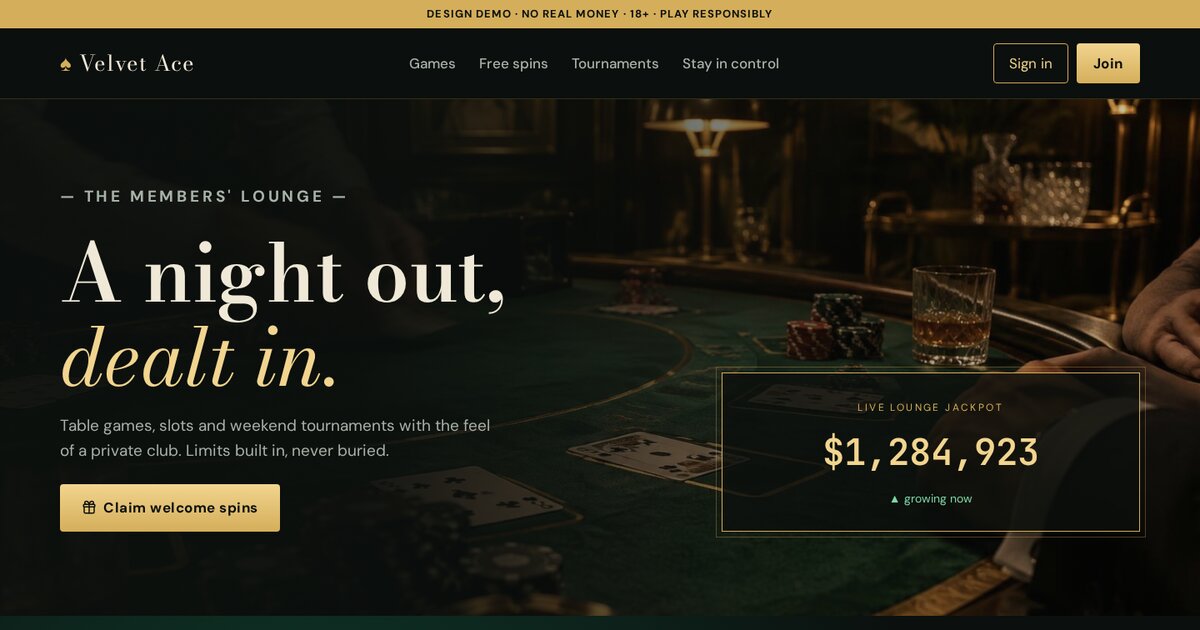
Proof that a style can be bold and dramatic without becoming messy: one gold accent, strong hierarchy, clear actions.
Open the live demo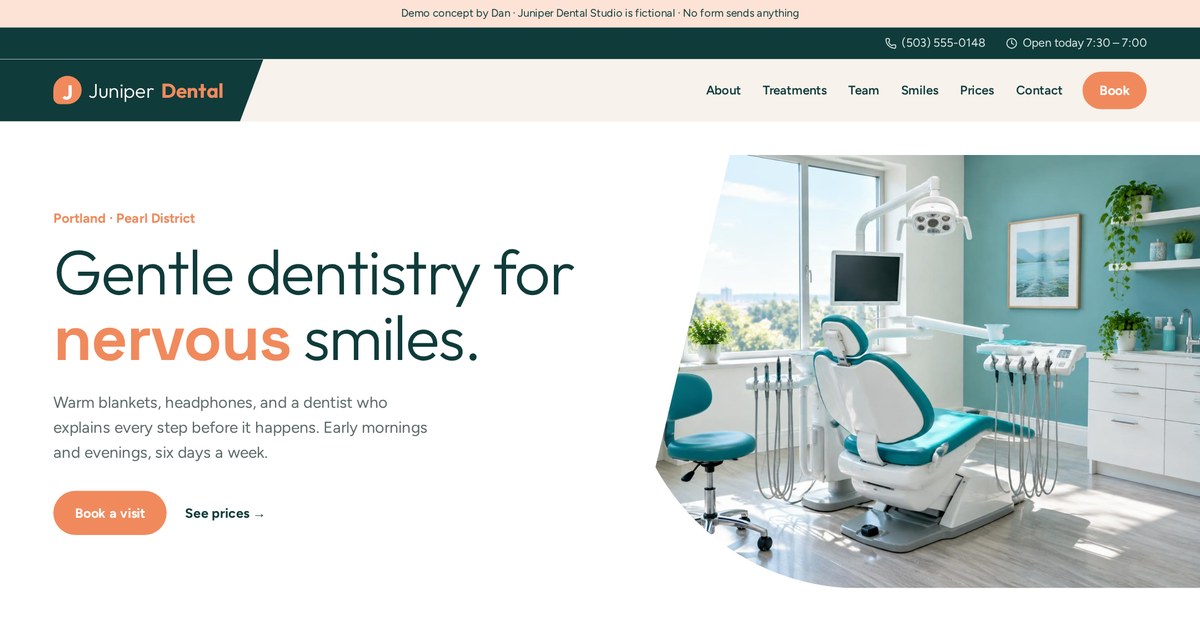
And proof that a calm, friendly style can still be distinctive: warmer than a typical dental site, with a treatment explorer.
Open the live demoA short decision path
- Write the goal in one sentence.
- Sketch your visitor and their biggest fear.
- Review competitors and choose what to be different on.
- Pick one style from the style chooser in Part 6.
- Set a palette with one accent and two fonts.
- Plan real photos.
- Wireframe the homepage and one service page.
- Decide template, semi-custom or custom, and the platform.
- Add one interactive tool that leads to action.
- Check phone, speed, accessibility and SEO basics before launch.
My choose-your-design checklist
- Main goal written in one sentence
- Visitor sketch done: who, device, urgency, fears
- 5 to 10 competitor sites reviewed
- One visual style chosen and committed to
- Palette: one brand color, neutrals, one accent for buttons
- Two fonts, tested on real headlines and labels
- Real photos planned; stock and AI only for mood
- Homepage layout sketched in grey boxes
- Menu of five to seven plain-word items
- Template, semi-custom or custom decided
- Platform chosen with updates and features in mind
- One interactive tool that leads to a next step
- Phone version reviewed on a real device
- Contrast and text sizes checked
- Only real proof: no fake reviews or numbers
Website design terms in plain English
- Accent color
- The one color reserved for buttons and clickable actions.
- Accessibility
- Designing so people with disabilities can use the site.
- Alt text
- A short description of an image for screen readers and search engines.
- Above the fold
- What's visible before scrolling.
- Brand
- Your name, logo, voice, values and promise.
- Breadcrumb
- A trail of links showing where a page sits in the site.
- Call to action (CTA)
- A button or line telling visitors what to do next.
- Card
- A boxed tile holding a summary of one item.
- Color palette
- The set of colors a site uses.
- Contrast ratio
- How different text and background colors are; higher is easier to read.
- Conversion
- When a visitor completes the action you want.
- Core Web Vitals
- Google's measures of loading, responsiveness and visual stability.
- Custom design
- A design made only for your business.
- Display font
- A decorative font for large headlines.
- Estimator
- An interactive tool that gives a rough price.
- Favicon
- The small icon in the browser tab.
- Font pairing
- Two fonts chosen to work together.
- Footer
- The bottom area of every page.
- Grid
- Invisible columns that keep a layout aligned.
- Hamburger menu
- The three-line icon that opens a mobile menu.
- Header
- The top bar with logo and menu.
- Hero section
- The opening section of a page.
- Hierarchy
- Using size, color and space to show what matters most.
- Line length
- How many characters fit on a line of text.
- Mockup
- A realistic picture of how a page will look.
- Mood board
- A collection of images, colors and fonts that set a direction.
- Navigation
- Menus and links that help people move around.
- Phone-first
- Designing the phone version before the desktop version.
- Responsive design
- A layout that adapts to any screen size.
- Sans-serif
- Fonts without small strokes on the letters.
- Serif
- Fonts with small strokes on the ends of letters.
- Sitemap
- A list or diagram of all the site's pages.
- Stock photo
- A licensed photo not taken specifically for you.
- Sticky header
- A header that stays visible while scrolling.
- Style guide
- Rules for colors, fonts, buttons and spacing.
- Tap target
- The area of a button you can tap on a phone.
- Template
- A pre-made design you fill with your content.
- Theme
- A template package for platforms like WordPress or Shopify.
- UI
- User interface: the buttons, forms and screens people use.
- UX
- User experience: how easy and pleasant the site is to use.
- Visual style
- The overall look and mood of a design.
- White space
- Empty space around elements that makes design breathe.
- Wireframe
- A simple box sketch of a page layout.
Frequently asked questions
How do I choose a website design?
Start with your goal and your ideal customer, study competitors to learn expectations, pick one visual style that fits your price point and stands out, then choose colors, fonts, images and layout that make your main action easy.
What is the best website design style?
There isn't one. Minimal suits tech, corporate suits finance, bold suits fitness, luxury suits high-end retail. The best style fits your customer and looks different from your competitors.
How many colors should a website have?
Usually one main brand color, one or two neutrals and one accent color for buttons. More than that gets messy quickly.
How many fonts should a website use?
Two at most: one for headlines and one for body text. Use size and weight for variety.
Should I use a template or custom design?
A template is fine for simple, low-budget sites. Custom design is worth it when the site is a main source of leads or sales, you need to stand out or you need interactive tools.
What makes a website design look professional?
Consistent spacing, a limited palette, two fonts, real photos, readable text, clear hierarchy and a design that works well on phones.
What is SEO website design?
Designing so search engines can read and load your pages easily: real text headings, separate service pages, fast images, mobile-friendly layouts and clear navigation.
Can I use AI images on my website?
For mood or illustration, yes. Never use AI images to show your team, results or customers as if they were real.
How do I describe the design I want to a designer?
Share your goal, customer, three sites you like and exactly what you like about each, plus any brand assets, must-have features, budget and deadline.
How often should I redesign my website?
When it looks dated, is slow, doesn't convert or no longer matches your business. Small improvements along the way are often better than a full rebuild every few years.
How much does website design cost?
It depends on page count, custom features, copy and photos. Templates cost less; custom design with tools like estimators costs more. Ask for a scoped quote.
Do you design websites?
Yes. I design and build websites, landing pages and funnels. Email dan@admusketeers.com with what your site needs to do.
Not sure which design fits your business?
Let's choose it together.
I design and build websites, landing pages and funnels with a clear point of view, and I'll show you a visual direction before anything gets built. Tell me what you're working on.